


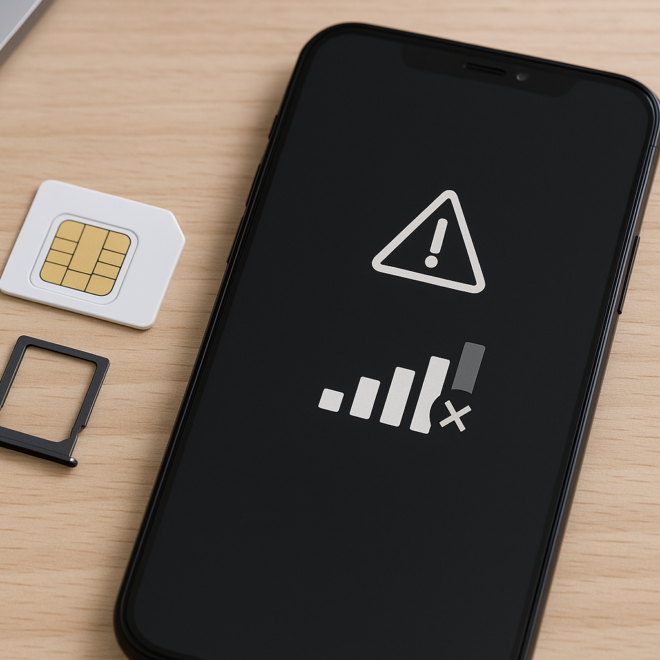

Quick Answer
If your Lifeline SIM card isn’t working, the most common causes are incomplete activation, incorrect APN settings, a locked or incompatible phone, weak coverage, or service suspension due to eligibility or usage rules. Start by confirming your account is active and your phone is unlocked and VoLTE-capable, then insert the SIM correctly, restart, and update carrier settings. If data still won’t connect, set the APN for your underlying network (T-Mobile, AT&T, or Verizon) and try a manual network search. For “SIM not provisioned” or number porting delays, contact your Lifeline provider to re-provision the line or check porting status.
Why a Lifeline SIM Stops Working
Lifeline service uses major carrier networks and follows the same activation, device compatibility, and provisioning rules as regular service. Failures usually trace to one of these areas: activation not completed or stuck in provisioning, a device that’s incompatible or locked to another carrier, missing or incorrect APN settings for mobile data, local coverage gaps or outages, a damaged SIM or tray, or an account suspension for non-usage, failed recertification, or expired eligibility. Working through these in order prevents wasted time and unnecessary SIM swaps.
Start with These Quick Checks
- Coverage and outages: Check your provider’s coverage map and outage page for their underlying network. If others nearby have no service, it’s likely an area issue—wait for restoration.
- Account status: Sign in to your Lifeline portal/app to confirm your benefit is active, your renewal date hasn’t passed, and there’s no suspension for non-usage (most programs require at least one call, text, or data session every 30 days).
- SIM placement: Power off, remove the SIM, inspect for scratches or bent contacts, and reinsert firmly in the correct orientation. Use the correct size (most are nano SIM). Avoid over-tightening dual-SIM trays.
- Airplane mode and restart: Toggle airplane mode on for 15 seconds, then off, and restart the phone to force a fresh network attach.
- Carrier and OS updates: Over Wi‑Fi, install any pending system updates. On iPhone, go to Settings > General > About and tap Update if a carrier settings prompt appears.
- Dual‑SIM settings: If your device has two lines, ensure the Lifeline SIM is set as the active line for calls/texts/data and that cellular data is assigned to the correct SIM.
Activation Problems and How to Fix Them
New SIM Activation Checklist
Before you begin, have your SIM card (ICCID), phone IMEI, service ZIP code, and any activation PIN your provider sent. Then follow this flow:
- Insert the SIM and connect the phone to Wi‑Fi. Many activation steps require data.
- Use your provider’s activation page or app to pair the SIM ICCID with your line. If asked, enter the IMEI of the device you’ll use.
- Restart the phone after the portal confirms activation. Leave the phone idle for up to 5 minutes so it can download carrier settings and register.
- On Android, set Preferred network type to LTE/4G/5G Auto. On iPhone, enable Voice & Data: LTE (or 5G Auto if supported) and turn on VoLTE/HD Voice.
- Place a test call. Then turn off Wi‑Fi and test mobile data. If calls work but data fails, configure APN settings (see table below).
eSIM Activation (if your provider supports it)
Some Lifeline carriers can issue an eSIM instead of a physical SIM. Request an eSIM in your account portal or via support, then:
- Scan the QR code or paste the activation code: iPhone Settings > Cellular > Add eSIM; Android (varies) Settings > Network & Internet > SIMs > Download a SIM.
- Set the new eSIM as the default for calls, texts, and data. Keep Wi‑Fi on during installation and restart when complete.
- If you see “Activation Error,” confirm your device IMEI is compatible/whitelisted and ask support to re-provision the eSIM profile.
Stuck on “SIM Not Provisioned” or “Emergency Calls Only”
These statuses usually mean the SIM hasn’t been activated on the network, pairing didn’t complete, or a number port is pending. Try:
- Re-run activation in the portal/app and verify the ICCID exactly matches the physical SIM.
- Power cycle the device, then wait 15 minutes. Some features (voice, data, MMS) can take time to provision.
- Test the SIM in another unlocked, compatible phone. If it works there, the original device is locked or not compatible.
- If you’re porting a number, keep the old SIM in the old phone until it loses service; that signals the port completed. Mobile ports typically finish in 2–24 hours.
- Contact support and request a “refresh/re-provision” and confirm the IMEI on file matches your phone.
Number Porting and Temporary Outages
During number transfers, interruptions happen if the account number, PIN, or billing ZIP don’t match the losing carrier’s records. If calls go to voicemail or texts are inconsistent during the port window, ask support to check LNP status and re-submit with the exact credentials from the old provider. Don’t cancel the old service until the port fully completes.
Network Problems After Activation
No Service or One Bar Everywhere
If coverage is weak across locations, you may be on a network with limited signal where you live or work. Many Lifeline providers can move you to a different underlying network if eligible. Meanwhile:
- Manually select a network: Android Settings > Network & Internet > SIMs > Network > Choose network manually; iPhone Settings > Cellular > Network Selection > turn off Automatic and pick the partner network.
- Enable VoLTE/HD Voice: Android Settings > Mobile network > Enable VoLTE or Enhanced 4G LTE; iPhone Settings > Cellular > Voice & Data > LTE/5G with VoLTE on.
- Disable 5G temporarily if 5G is weak or inconsistent; set LTE/4G only and retest signal and calls.
- Turn on domestic data roaming (if available) to allow partner coverage in fringe areas, subject to plan limits.
Data Not Working but Calls and Texts Do
This almost always points to a missing or incorrect APN. Enter the APN for your underlying network from the table below, save it, select it, then restart. Confirm that Mobile Data is on, and turn on domestic data roaming if your plan allows it. If your plan just renewed, allow several minutes for data features to re-enable.
Picture Messages (MMS) Failing
MMS depends on the correct MMSC and APN type including mms. Even if regular data works, a missing MMSC will block pictures and group texts on Android. Recreate the APN with the MMSC field filled and APN type “default,supl,mms,” then toggle airplane mode. On iPhone, MMS settings are pulled automatically; if MMS is off, go to Settings > Messages > enable MMS Messaging and Group Messaging.
Frequent Drops and Call Issues
Ensure VoLTE is on; all major U.S. carriers retired 3G, so voice must use LTE (VoLTE) or 5G. If your device lacks VoLTE support on the underlying network, you’ll see failed calls or frequent drops. An unlocked, compatible phone fixes this immediately.
Reset Network Settings
- Android: Settings > System > Reset options > Reset Wi‑Fi, mobile & Bluetooth.
- iPhone: Settings > General > Transfer or Reset > Reset > Reset Network Settings.
After the reset, re-enable Wi‑Fi and Bluetooth, confirm your APN on Android, and re-pair any Bluetooth devices.
Device and SIM Compatibility
Confirm the Phone Is Unlocked and Whitelisted
A carrier-locked phone can show “SIM not supported” or fail to register. If you bought the device from another carrier, request an unlock from them; most carriers unlock after payoff with the account in good standing. Also check your IMEI on your Lifeline provider’s compatibility tool. Verizon-based service requires the device IMEI to be on their VoLTE whitelist; some older models won’t qualify.
Band Support Matters
Performance depends on matching the network’s LTE/5G bands. For example, T‑Mobile relies on LTE bands 2/4/12/66/71 and 5G n41/n71; AT&T uses LTE 2/4/5/12/17/29/30/66 and 5G n5/n77; Verizon uses LTE 2/4/5/13/66 and 5G n5/n77. Imported or budget devices missing key bands can show slow speeds or no indoor service.
VoLTE Requirement and the 3G Shutdown
With 3G retired, your phone must support VoLTE/HD Voice on the specific underlying network or voice won’t work. If you don’t see a VoLTE/HD Voice toggle, the device is likely not supported for that network.
Blacklisted or Flagged IMEI
Phones reported lost, stolen, or tied to unpaid balances can be blocked at the network level. If activation fails without a clear cause, ask support to run an EIR/IMEI check. Only the original carrier can clear a blacklist.
Common Errors and What They Mean
| Error/Status | Likely Cause | Fix |
|---|---|---|
| SIM not provisioned (MM#2) | Activation incomplete or port still pending | Re-run activation, restart, wait 15–60 minutes, contact support to re-provision |
| Emergency calls only / No service | Not registered on network, poor coverage, or wrong network selected | Manual network selection, check coverage, try another location, verify device compatibility |
| SIM not supported | Phone is carrier-locked or unsupported | Request unlock from previous carrier, verify whitelist compatibility |
| Data not working | APN missing/incorrect, data feature not provisioned | Enter APN from table below, toggle airplane mode, ask support to refresh data features |
| Cannot send/receive MMS | MMSC not set, APN type missing “mms” | Set MMSC and APN type “default,supl,mms,” restart |
| SIM locked / PUK required | SIM PIN entered incorrectly 3+ times | Get PUK from SIM packaging or provider support, then remove or change the SIM PIN |
APN Settings That Commonly Work
Many Lifeline carriers use one of the three national networks. If your provider doesn’t supply a specific APN, these templates often work. Enter exactly as shown, save, select the APN, then restart. If data still fails, ask your carrier for its exact APN.
| Underlying Network | APN | MMSC | APN Type | Notes |
|---|---|---|---|---|
| T‑Mobile (used by many Lifeline MVNOs) | fast.t-mobile.com | http://mms.msg.eng.t-mobile.com/mms/wapenc | default,supl,mms | Username/Password blank; MCC 310, MNC 260; IPv4/IPv6 |
| AT&T (some SafeLink and others) | RESELLER | http://mmsc.mobile.att.net | default,supl,mms | If RESELLER fails, try nxtgenphone; MMS proxy/port blank |
| Verizon (some SafeLink and others) | VZWINTERNET | http://mms.vtext.com/servlets/mms | default,supl,mms | Bearer unspecified; MMS proxy/port blank |
When to Contact Your Lifeline Provider
Reach out after you’ve checked coverage, restarted, and tried APN settings. Support can run diagnostics and fix account-level issues you can’t see. Be ready with:
- Account information and service ZIP code
- SIM ICCID (printed on the card) and phone IMEI
- Device make/model and current location/ZIP
- Screenshots or exact wording of errors (e.g., “not provisioned,” “no service”)
Ask for a line refresh/re-provision, verification that the SIM ICCID is correctly paired, an IMEI update if you changed phones, and confirmation that your plan features (voice, SMS, data, MMS, hotspot) are enabled. If activation still fails, request a free replacement SIM or an eSIM if supported. For number transfers older than 24 hours with no progress, ask to escalate the port with the correct account number, port-out PIN, and billing ZIP from your previous carrier.
Prevent Future Interruptions
Lifeline service has ongoing eligibility and usage rules. Make at least one call, send a text, or use data every 30 days and complete annual recertification when notified. Keep your mailing address, email, and contact phone current so you don’t miss renewal reminders or SIM replacement notices. If your provider offers it, enable eSIM and keep a backup physical SIM as a fallback. Handle the SIM carefully—avoid frequent swaps, and protect it from moisture and bending that can damage the contacts.
Frequently Asked Questions
How long should Lifeline SIM activation take?
Most activations finish within minutes after pairing the ICCID to your line and restarting the phone. It can take up to an hour for all features to appear. If you’re porting a number, expect 2–24 hours for mobile numbers and longer for landlines. If you still see “SIM not provisioned” after an hour, ask support to re-provision.
Why did my service stop even though the SIM is fine?
Lifeline service can be suspended for non-usage (no call, text, or data within 30 days), failing annual recertification, or eligibility changes. Sign in to your account portal to check status. Once you verify eligibility or confirm usage, support can usually restore service quickly.
Will I lose my number if activation is delayed?
If you ordered a new number, providers typically hold it for a short window; finish activation promptly to avoid reassignment. For number ports, your old number stays active on the previous carrier until the port completes—do not cancel early. If a port stalls, contact support with the exact account number, port-out PIN, and billing ZIP from the old carrier.
Can I use my Lifeline SIM in a tablet or hotspot?
Many Lifeline plans are provisioned for phones only. Even if the SIM fits, data may not work in a tablet or hotspot, and voice/SMS typically won’t. Check your plan’s terms; some providers can enable hotspot or offer a data-only SIM upon request.
My phone says “SIM not supported.” What does that mean?
This indicates the device is locked to another carrier or not approved for the underlying network. Request an unlock from the original carrier and verify the phone’s IMEI on your Lifeline provider’s compatibility tool. If it remains unsupported, you’ll need a different phone that is VoLTE-capable and whitelisted.
Do I need new APN settings if I switch phones?
Sometimes. iPhones typically pull APN settings automatically, but Android devices may require re-entering the APN when you change phones or SIMs. After inserting the SIM in a new Android device, confirm the APN from the table above, save and select it, then restart.
How do I get a replacement SIM if mine is lost or damaged?
Contact your Lifeline provider through the portal or support line and request a replacement SIM or eSIM. They’ll verify your identity and ship a new SIM, usually at no cost. Once received, activate it in your account, update the IMEI if you changed phones, and restart to complete provisioning.

