



Quick Answer
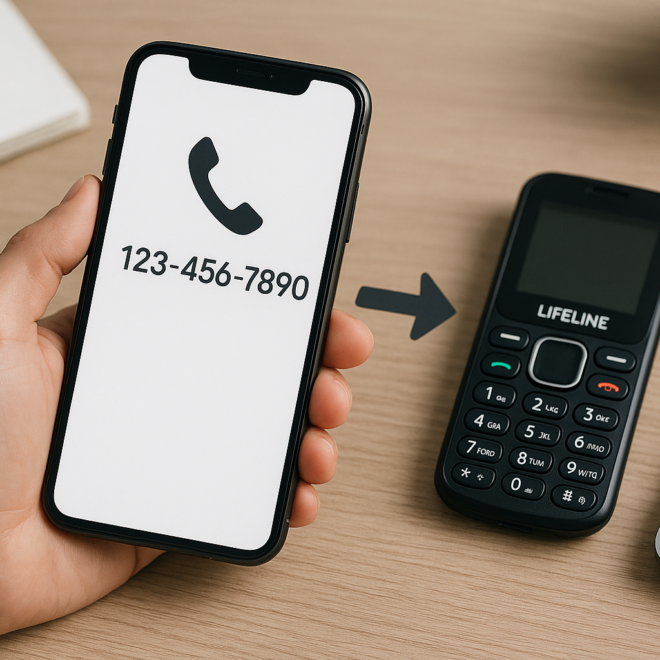
To transfer your existing number to a Lifeline phone, keep your current line active, choose a Lifeline provider that supports “keep your number,” and give them your current carrier’s account number, port-out PIN (Number Transfer PIN), and billing details. The provider will submit the port-in request, ship or activate a SIM/eSIM, and move your number—often within hours for mobile-to-mobile ports and 1–3 business days for landline/VoIP. Do not cancel your old service until your Lifeline phone can place and receive calls and texts with your number.
What Transferring Your Number (Porting) Means
Transferring—or “porting”—moves your current telephone number from your existing carrier to your new Lifeline provider. Lifeline is a federal program that offers discounted phone service to eligible low-income consumers through approved providers such as Assurance Wireless, SafeLink, Q Link, TruConnect, and enTouch. When you port in, your contacts keep using the same number while your service runs on the Lifeline plan and SIM/eSIM.
Before You Start: Quick Checklist
- Confirm Lifeline eligibility, pick a participating provider for your state, and check coverage where you live and work.
- Keep your current number active; ports require an active line.
- Gather details: current carrier name, account number, port-out/Number Transfer PIN, account holder name, billing address, and the last four of SSN or date of birth if your carrier uses them for verification.
- Turn off any “number lock” or “port protection” (e.g., Verizon Number Lock, T-Mobile Number Lock) on your current line.
- If bringing your own phone, confirm it’s carrier-unlocked and compatible with the Lifeline provider’s network.
- Back up voicemails and save important texts. Prepaid balances, rewards, and existing voicemail don’t transfer.
How to Transfer Your Number to a Lifeline Phone
1) Enroll with your chosen Lifeline provider
Apply online or by phone. You’ll verify eligibility and complete identity checks. If you are switching from one Lifeline provider to another, request a “Lifeline benefit transfer” so your subsidy moves to the new provider.
2) Choose “Keep my current number” at activation
During activation, select the option to keep your number. If it isn’t shown online, contact the provider’s porting team or customer care and ask for a number transfer (port-in).
3) Provide exact porting credentials
Submit your current carrier name, account number, port-out/Number Transfer PIN, and the billing name and address exactly as listed on your account. Typos and mismatches are the top reason ports are rejected—copy details directly from your online profile or most recent bill.
4) Insert the SIM or activate eSIM
Your Lifeline provider will ship a SIM card or send eSIM instructions. For a SIM, power off the phone, insert the SIM, and power on. For eSIM, scan the QR code or follow the in-app steps. If your device is carrier-locked, contact your current carrier to unlock it first.
5) Wait for completion and test
Wireless-to-wireless ports usually finish within minutes to a few hours; landline or VoIP ports take 1–3 business days, sometimes longer. During cutover, calls or texts may route inconsistently. When calls, SMS/MMS, and data work reliably on the Lifeline phone, the port is complete. Set up your new voicemail. Do not place test calls to 911 except in an emergency.
6) Cancel your old plan (if needed)
After you confirm the port works on your Lifeline phone, contact your previous carrier to cancel any remaining services and disable autopay. Don’t cancel early or you could lose the number.
What You’ll Need (and Why It Matters)
Carriers validate port requests using your account number, port-out/Number Transfer PIN, and billing profile. Any mismatch can stall the transfer. Many carriers require you to generate a one-time transfer PIN in their app or by dialing a short code. Some accounts also have a fraud-prevention “port lock” that must be disabled before porting.
Where to Find Your Account Number and Port-Out PIN
Credentials are typically in your carrier’s app or online account, on a paper bill, or available via customer support. Use the guide below as a reference and verify steps with your carrier if anything differs.
| Current Carrier | Account Number Location | How to Get Port-Out PIN | Notes |
|---|---|---|---|
| AT&T (postpaid) | On bill or in myAT&T | Generate a Number Transfer PIN in myAT&T or by dialing *PORT | Ensure billing ZIP and account passcode match your profile |
| AT&T Prepaid | Request via 611 or support | Use your 4‑digit prepaid passcode | Match name/address exactly as on file |
| T-Mobile (postpaid) | On bill or in T-Mobile app | Generate a Number Transfer PIN in the app or by calling 611 | Disable Number Lock in the app before porting |
| Verizon (postpaid) | On bill or in My Verizon | Create a Number Transfer PIN in the app or online | Turn off Number Lock before requesting the port |
| Verizon Prepaid | In account profile or via support | Use your 4‑digit account security PIN | Line must be active |
| Cricket Wireless | Cricket app or online account | Use your 4‑digit account PIN | PIN set at sign‑up |
| Metro by T-Mobile | MyMetro app or support | Get a transfer PIN in the app or by calling 611 | Service address and name must match |
| Boost Mobile | Boost account or support | Use/request your Boost PIN | Legacy accounts may have different steps |
| Google Voice | Your 10‑digit GV number | Set your PIN in GV settings and unlock the number | One‑time $3 unlock fee for most personal accounts |
| Xfinity Mobile | In Xfinity Mobile account | Request a transfer PIN in account or via support | Account holder name and address must match |
| Spectrum Mobile | In Spectrum Mobile account | Request a transfer PIN in account or via support | Check for any account security locks |
| Mint Mobile | Mint app under Account | Find your port‑out PIN in the app | Confirm email and ZIP are current |
Special Cases and Caveats
Porting a landline or VoIP number
Moving a landline or VoIP number to mobile is usually possible within the same region but can take 1–3 business days or more. Keep service active until the port completes. If your number anchors a bundle (internet/TV/voice), unbundling may change your pricing—ask your provider before you port.
Google Voice and other virtual numbers
Unlock your Google Voice number in settings and pay the one-time fee if prompted. Use your Google Voice number as the account number and the PIN you set in GV. After the port, that number leaves Google Voice.
Business, family, and multi-line accounts
Corporate or family plans may require the account owner’s approval or a transfer of responsibility to an individual profile before porting. Check with your current carrier first.
Switching between Lifeline providers
If your number is already on a Lifeline account, your new provider must initiate a Lifeline benefit transfer in the national database before or during the port. Complete any verification steps promptly to avoid delays.
One-per-household rule
Lifeline allows one discounted service per household. Porting your number doesn’t change that, and two Lifeline services can’t be active at the same address.
Using Your Own Phone vs. a Lifeline Phone
If you receive a Lifeline phone, the provider will activate your number on it. To use your own device, ensure it’s unlocked and supports your provider’s network bands. Many Lifeline providers can activate eSIM on compatible phones, which can speed things up. If mobile data or MMS fails after the port, confirm APN settings from the provider, toggle airplane mode, or reset network settings as needed.
Timing: What to Expect
- Wireless to wireless: minutes to a few hours; most complete the same day.
- Landline/VoIP to wireless: usually 1–3 business days; complex cases can take longer.
- If a simple wireless port stalls beyond 48 hours, contact both carriers’ porting teams. You can also escalate with your state regulator or the FCC.
Costs, Contracts, and What You Might Lose
Receiving carriers generally don’t charge for a port-in. Your current carrier may charge early termination fees if you’re under contract, and any device installment balance remains due. Prepaid balances, rollover minutes, rewards, and existing voicemail don’t transfer. If you’re removing a number from a bundle, confirm how it affects your internet/TV pricing.
Security Tips
- Keep your line active and under your control during the port; watch for verification texts sent to your old SIM.
- Use unique, strong passwords and enable account alerts on both carriers.
- After the port, enable number lock/port-out protection with your new provider.
Troubleshooting Common Porting Problems
“Information mismatch” rejection
Double-check the account number, transfer PIN, and the exact spelling of the billing name and address. Copy them from your online account or a recent bill and resubmit.
Account has a port freeze/number lock
Disable the lock in your current carrier’s app or by calling support, then have your Lifeline provider reattempt the port.
Partial port: calls work, texts don’t
This usually resolves when SMS routing finishes updating. Power-cycle the phone, toggle airplane mode, and if you switched platforms, deregister iMessage/FaceTime or RCS on the old device. Ask your new carrier to refresh provisioning or send over-the-air updates.
eSIM won’t activate
Enable Wi‑Fi, scan the QR code again, and confirm your phone’s IMEI/IMEI2 matches what the provider has on file. Remove any old eSIM profiles tied to previous carriers before adding the new one.
Long delay or dead line
Contact both carriers’ number portability teams with your port request/CSR number. If the losing carrier is unresponsive or rejects valid credentials, file a free complaint with the FCC to prompt resolution of a stalled simple port.
After Activation: Final To-Dos
- Set up voicemail and confirm you can retrieve messages.
- Test inbound and outbound calls, SMS/MMS, and data—ideally from different networks.
- Update your number on two-factor logins, medical and school records, and key online accounts.
- Turn off autopay and cancel add-ons with your old carrier after the port completes.
Provider-by-Provider: How You’ll Submit Your Port
Steps are similar across providers, but submittal flows vary slightly:
- Assurance Wireless: Start activation online or by phone, choose “keep my number,” and provide your current carrier credentials. You’ll be notified when to insert the SIM or complete eSIM steps.
- SafeLink Wireless: Use the Bring Your Own Number option during enrollment or call support; enter the account number and PIN, then activate the SIM once approved.
- Q Link Wireless: Complete the number transfer form in your account, then insert the SIM or activate eSIM after confirmation.
- TruConnect and enTouch: Submit port credentials during activation and wait for a completion text or email before removing your old SIM.
If you are moving your Lifeline benefit between providers, expect a short, additional verification step to transfer your subsidy in the national database. Your new provider will coordinate it.
Regulatory Backdrop: Why You Can Keep Your Number
Under federal Local Number Portability rules, carriers must allow you to keep your number when switching providers within the same geographic area. Wireless-to-wireless ports typically complete within one business day. Carriers can’t deny a port because you owe money, but the line must be active and free of fraud holds. You remain responsible for unpaid balances or contract/device obligations with the old carrier.
Frequently Asked Questions
Can I transfer my number if my current service is suspended or past due?
No. The number must be active to port. If your account is suspended for non-payment, restore service first. You can still owe a balance; carriers can’t block a port because of debt, but they can block it if the line isn’t active.
How long will the transfer take?
Most mobile-to-mobile ports complete within a few hours, often the same day. Landline or VoIP to mobile typically takes 1–3 business days, and complex cases (bundles, business lines) can take longer. Brief service inconsistency during cutover is normal.
Will I lose my contacts, texts, or voicemail?
Your number moves, but content does not. Contacts and texts stored on your phone or synced to cloud services stay with you. Visual voicemail and saved messages on your old carrier don’t transfer; back up anything important and set up new voicemail after activation.
Can I use my current smartphone with a Lifeline SIM?
Yes, if the phone is unlocked and compatible with your Lifeline provider’s network. Check IMEI compatibility on the provider’s site. If your device is financed or locked, request an unlock from your current carrier once eligible.
Should I cancel my old service before I port?
No. Wait until your Lifeline phone is making and receiving calls and texts with your number. Canceling early can release the number and make it non-portable. After the port, contact your old carrier to close the account and stop autopay.
What if my provider says my number can’t be transferred?
First, verify the account number, transfer PIN, and billing details exactly match the losing carrier’s records. Ask about any port freeze, regional restriction, or a mismatch in the Lifeline database. If a simple wireless port stalls for more than a couple of days without valid reason, escalate with both carriers and consider filing an FCC complaint.

