


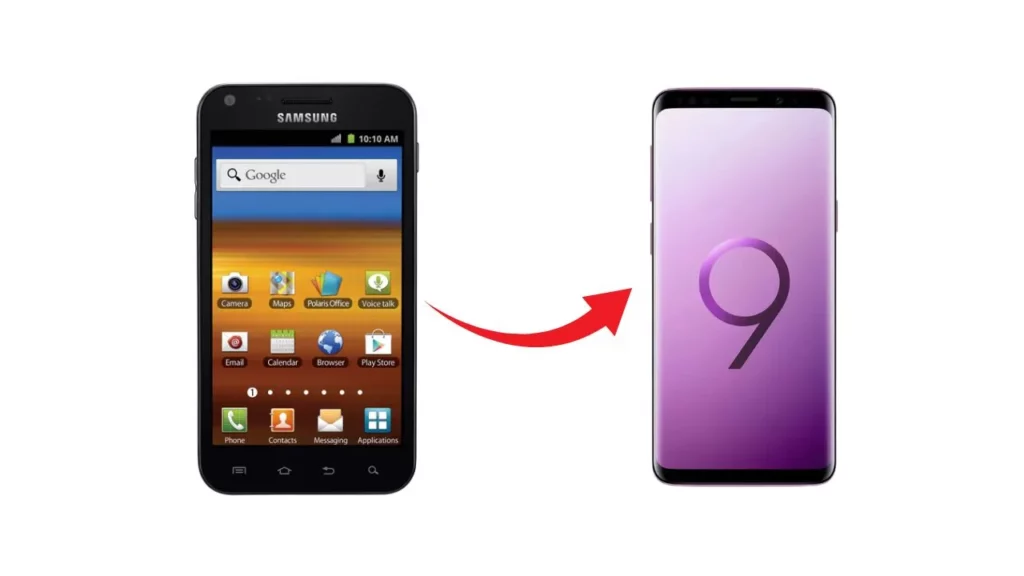

TL;DR
- Pick the right path: Use upgrade for a working phone; use replacement for lost, stolen, or damaged.
- Check eligibility first: Lifeline must be active/recertified; clear any holds, know your account number/PIN.
- Expect small costs: Many providers charge co-pays, taxes, shipping, or restocking; verify any lock period.
- Choose a compatible phone: Pass the IMEI check and ensure VoLTE, correct 4G/5G bands, Wi-Fi Calling, hotspot, and ideally eSIM.
- Keep your number and data: Back up first, move 2FA codes, then activate; for provider switches, port your number with the correct account info.
A quick heads-up before you start
Before you hit “Request Upgrade,” know what decision-makers look for. In the Lifeline program, an upgrade is asking for a newer model while your current phone still works; a replacement covers a lost, stolen, or broken device. Each path follows different rules, fees, and timelines, so picking the right one saves days of back-and-forth.
First, confirm your benefit is active and recertified. Most providers won’t approve any change if your account shows a hold, a missing recertification, or a past-due balance for extras like add-on data. Keep your account PIN and the exact name/address that appear on your government ID—small mismatches trigger identity reviews and slow approval.
Next, check program context. Lifeline continues, but the ACP benefit has ended, so many carriers tightened upgrade policies or added small co-pays. An “upgrade eligible” banner in your provider portal doesn’t always mean “free”—expect possible co-pay, taxes, shipping, or restocking fees, and ask whether the new phone will be locked and for how long.
Compatibility matters more than brand names. Your next device should support VoLTE, your carrier’s 4G/5G bands, Wi-Fi Calling, and Emergency Alerts. If you’re eyeing BYOD to get a better model, run an IMEI check first; some networks now prefer eSIM-capable phones and may reject older, non-VoLTE models. If your current number secures your accounts, plan for 2FA code transfer so you don’t get locked out of banking or email during activation.
Timing is another quiet gatekeeper. Providers set their own upgrade frequency and inventory rules; pushing for a new device too soon or requesting a model that’s out of stock can lead to a denial that’s hard to overturn. If your phone is damaged or missing, use the replacement channel—claims teams handle those differently and may require a police report or deductible rather than an upgrade review.
Have a mini-kit ready to speed approvals:
- Government ID and current eligibility proof (e.g., program participation letter).
- Account PIN, shipping address, and a reachable backup contact.
- Shortlist of compatible models you’ll accept (so you can pivot if one is out of stock).
Start with these checks and you’ll walk into the request with fewer surprises, a cleaner approval path, and a phone that actually performs better on your network.
Check if your plan lets you upgrade right now
Start by confirming your Lifeline benefit is active and recertified. If recertification is overdue—or your account shows a hold—most providers won’t process upgrades. Next, check whether you’re within your provider’s minimum wait period since activation or the last replacement; some carriers require time to pass before approving a newer device. If your phone is lost, stolen, or broken, use the replacement path instead of upgrade to avoid automatic denials.
Open your provider portal and review the policies that actually decide approval:
- Account status: Active service, no holds or past-due add-ons.
- Recertification date: Must be current.
- Upgrade frequency & eligibility banner: Look for any wait-time notes.
- Fees and fine print: Co-pay, taxes, shipping, restocking, lock period.
- Inventory notes: Approved models vs. BYOD rules.
- Address & PIN: Must match your government ID to pass verification.
Upgrade vs. replacement: which path fits your case?
Replacement applies when the phone is broken, lost, or stolen. Act fast: suspend the line, report the issue in your provider portal, and ask for a replacement claim (some carriers require a police report for theft). Expect a possible deductible, plus limits on how many replacements you can request per year. The original IMEI may be blacklisted to prevent misuse. Replacements typically ship with the same or similar model—not a higher-tier device—unless inventory forces an equal-value substitute.
Upgrade is for a working phone when you want a newer model. You’ll need an active, recertified Lifeline account, meet any waiting period since activation or last swap, and accept potential co-pays, taxes, shipping, or restocking fees. Devices may be network-locked for a set time. If you prefer BYOD, run an IMEI check and confirm support for VoLTE, correct 4G/5G bands, Wi-Fi Calling, and Emergency Alerts. Choose this path when performance, storage, battery life, or software support—not damage—drives the change.
What you’ll need (fast checklist)
- Government ID — name and address must match your provider account exactly.
- Eligibility proof — recent Lifeline documentation (e.g., SNAP/Medicaid/SSI approval or benefit letter).
- Account details — provider login, account number, and account/transfer PIN.
- Contact & shipping info — current shipping address, backup phone/email for delivery updates.
- Current device info — model name/number, IMEI/MEID, SIM ICCID or eSIM EID/QR, and lock status.
- Network compatibility check — screenshot or result from your carrier’s IMEI checker (VoLTE/4G/5G support).
- Payment method — card or prepaid balance for any co-pay, taxes, or shipping.
- Security & backup — cloud backup on, list of 2FA apps/codes to move after activation.
- Preferred model shortlist — 2–3 carrier-approved options (be flexible on color/storage).
- If replacing (lost/stolen/damaged) — incident or police report number, if required by your provider.
Step 1: Confirm eligibility on your account
Open your provider portal and verify your Lifeline benefit is active and your annual recertification is up to date. Upgrades are rarely approved if the account shows a hold, a missing recert, or past-due add-ons. Confirm the account name, address, and DOB match your government ID to avoid identity reviews. If you recently swapped SIMs or filed a replacement, check for a cool-down period before upgrades are allowed. Clear any small balances, remove device holds, and make sure you know your account number and transfer PIN—both are commonly required to submit an upgrade request.
Step 2: Read your provider’s upgrade policy
Policies vary, so read the fine print. Note co-pays, taxes, shipping, and any restocking fees on returns. Check how often upgrades are allowed (e.g., once per line within a set window) and whether the phone will be network-locked and for how long. Review warranty coverage (manufacturer vs. provider), return window dates, and who pays for return shipping. If a promo price requires keeping service active for a period, mark that end date. Screenshot the policy page so you have proof if the cart or agent terms differ later.
Step 3: Choose an approved model the network supports
Pick a device that passes your carrier’s IMEI checker and supports VoLTE, the right 4G/5G bands, Wi-Fi Calling, E911/emergency alerts, and hotspot on your plan. Prioritize models with current OS and security updates and, if possible, eSIM for faster activation. Deciding between BYOD and provider inventory?
- BYOD pros: more choice, higher specs, keep your data/apps; cons: upfront cost, strict compatibility rules.
- Provider inventory pros: simple approval, promo pricing; cons: limited models, possible lock period.
Keep a shortlist of 2–3 compatible phones in case your first pick is out of stock.
Step 4: Contact support the smart way
Use the app or portal first—eligibility banners and cart pricing update there fastest. If you need a person, start with web chat (easy to save transcripts), then phone for escalations. Aim for Tue–Thu, early morning local time to avoid long queues; skip Mondays and lunch hours. Keep your account number, transfer PIN, and preferred model list ready.
Short script you can paste:
Hi, my Lifeline line is active and recertified. I’m eligible for an upgrade (not a replacement). I’m considering [Model A] or [Model B] that your site shows as in stock. Can you confirm the co-pay/taxes, lock period, and return window, and add the correct discount to my cart? Please share a ticket/order number and the final out-the-door total before I pay.
Step 5: Submit documents and verify identity
Upload clear, edge-to-edge scans (no shadows, no glare). Use PDF or JPG, under the portal’s size limit, and name files like Lastname_Firstname_ID.pdf. Details must match your account exactly (name, DOB, address).Fix mismatches: update the profile first, then resubmit. For address changes, add a recent bill or benefits letter. For name variations (hyphen, middle name), include a government document showing both versions and a short attestation in chat: “Both names refer to me; please verify.”
Step 6: Place the order and handle any co-pay
Checkout only through the official portal. Confirm the page shows HTTPS, the correct device, co-pay, taxes, and shipping. Pay with a traceable method, then save the receipt, order number, and chat transcript.
If the discount doesn’t appear:
- Refresh, try incognito or another browser.
- Remove/re-add the device, re-select the plan.
- Ask chat to apply a manual credit or provide a written quote with totals before you pay.
- Verify lock period, restocking fee, and return window in writing.
Step 7: Track delivery and prep your current phone
Watch your order status and sign for the package if required. While you wait, complete a full backup: Android — Settings ▸ Google ▸ Backup (include SMS, call logs, photos); iPhone — Settings ▸ iCloud ▸ iCloud Backup. Back up WhatsApp and other chat apps, and export 2FA backup codes from banking and email. Do not erase your eSIM/physical SIM yet. When the backup finishes, unpair wearables, remove any microSD, and sign out of accounts you won’t use on the old device. Keep items from the old box—charger/cable, SIM tool, manuals—you may need them for activation or returns.
Step 8: Activate and transfer everything cleanly
Insert the SIM or scan the eSIM QR in your carrier app/portal, then restart. Accept any carrier settings update. Use Quick Start/Device-to-Device transfer (Lightning/USB-C cable or Wi-Fi) or restore from your cloud backup. Move authenticator codes using the app’s built-in transfer or re-enroll with saved backup codes. Re-enable RCS/iMessage, sign in to cloud photos, and log back into wallets and banking apps. If switching platforms (iOS ⇄ Android), use Move to iOS or Google Drive methods to bring contacts, calendars, photos, and messages where supported.
Step 9: Test service and features on day one
Place and receive calls, send SMS/MMS, run a quick speed test, toggle Wi-Fi Calling, and connect a laptop to hotspot. Set up voicemail/visual voicemail, confirm Emergency Alerts/WEA are on, and test Bluetooth pairings (car, earbuds).
Fast fixes: No data → toggle airplane mode, reset APN (Android) or Reset Network Settings (iPhone), then update carrier settings. Can’t get calls → check Do Not Disturb/call forwarding, ensure VoLTE is enabled, re-select network. eSIM won’t activate → delete profile and re-add via new QR, ask support to push OTA provisioning. Hotspot blocked → verify plan includes hotspot and request a provisioning refresh. Porting stuck → keep the old line active, confirm the port-out PIN, and ask for a manual refresh.
Providers that support upgrades on Lifeline lines
Here are well-known Lifeline service providers that offer a path to a free government phone upgrade (usually a discounted or paid device added to your existing benefit). Availability, pricing, and lock periods can vary by state and inventory—always check your account first.
- AirTalk Wireless — Dedicated upgrade options with higher-tier smartphones; expect small co-pays and a standard lock period.
- Cintex Wireless — Regularly lists discounted upgrade phones; choices depend on stock and your state.
- SafeLink Wireless — Portal-based upgrades and BYOD support when your IMEI passes network checks.
- Assurance Wireless — Low-cost device upgrades separate from lost/stolen replacements; review return windows before paying.
- Access Wireless — Allows purchasing an upgraded handset through its online store for use with your Lifeline line.
- StandUp Wireless — After approval, you can buy a better model; confirm taxes, shipping, and restocking terms.
- TruConnect — Sells new devices compatible with its network; BYOD may be allowed when the phone supports VoLTE and required 4G/5G bands.
Tip: Before ordering, confirm co-pay, taxes, shipping, unlock policy, and whether hotspot/Wi-Fi Calling are enabled on the model you choose.
If your request is denied: how to turn a “no” into a “yes”
Start by reading the denial note inside your portal or chat transcript—most rejections map to a fix you can apply quickly.
Common reasons → exact fixes:
- Account not recertified/hold present → Recertify in the portal, pay/clear add-on balances, then re-submit.
- Name/address mismatch → Update your profile to match your ID exactly; upload a recent bill/benefit letter as proof and reattach the ID.
- Upgrade too soon/cool-down window → Ask support for the next eligible date; set a reminder and reapply then.
- Out-of-stock model → Provide a second and third choice; request a comparable device at the same co-pay.
- Device not compatible (IMEI failed) → Pick a carrier-approved model; if BYOD, confirm VoLTE/required bands/eSIM and recheck IMEI.
- Suspected fraud/duplicate benefit → Upload National Verifier approval, benefit letter, and a short attestation clarifying one active line per household.
- Shipping address flag (P.O. box/apt mismatch) → Use a deliverable street address with unit number and a matching proof of residence.
- Cart/discount not applying → Ask for a manual credit or written quote with the final out-the-door total, then complete payment.
When to escalate—and what to show:
Escalate after one clean, corrected resubmission or if the portal conflicts with written policy. Ask for a ticket/case number, “Tier 2 review,” and a manual provisioning refresh if activation/locking rules block the order. Attach: National Verifier confirmation, government ID, address proof, prior recert receipt, IMEI-checker screenshot, and the chat transcript showing promised terms.
Escalation script:
I corrected the issue noted in the denial (details above). Please escalate to Tier 2, confirm upgrade eligibility, apply the correct discount, and share the final total and lock/return terms on this ticket.
Lost, stolen, or damaged? Replacement steps that work
Act quickly to protect your line. Suspend service in your portal/app, lock/erase the phone with Find My Device/Find My iPhone, change passwords and 2FA on banking, email, and messaging. Open a replacement request (not an upgrade) and note the claim/ticket number. Have your ID, account number, transfer PIN, IMEI/eSIM EID, and a short incident summary ready.
Filing a claim & deductible basics: Submit photos of damage (if applicable) and upload clear, edge-to-edge ID scans. For theft, file a police report the same day; include make/model, IMEI, date/time, and location, and keep the report number. Many providers require a deductible plus taxes/shipping for replacements, and the device is usually a same-tier or refurbished unit—treat it as a restore, not an upgrade.
While you wait:
- Use BYOD: insert your SIM or activate a temporary eSIM on any compatible unlocked phone.
- Ask support to forward calls/voicemail to a secondary number.
- Keep the old line active until the new device provisions, then test calls, data, hotspot, and voicemail.
Want a better model than what’s offered?
BYOD path: Bring an unlocked phone that passes your carrier’s IMEI check and supports VoLTE, the right 4G/5G bands, Wi-Fi Calling, E911, and ideally eSIM for fast activation. Avoid models with missing band support or region-locks. If you’re buying retail, confirm the unlock policy and return window; if the IMEI is flagged or not compatible, you’ll be stuck. BYOD doesn’t change your Lifeline benefit—you’re just pairing better hardware with the same service.
Switching providers & promos: If your carrier’s inventory is weak, compare other Lifeline providers’ coverage, upgrade fees, lock periods, and time-limited promos (discounted co-pays, clearance devices). Capture screenshots of promo terms and confirm taxes, shipping, and restocking before you move. Remember: one Lifeline discount per household—you’re transferring, not adding a second line.
Keep your number (porting checklist):
- Keep the current line active until the port finishes.
- Get your account number and port-out PIN; verify billing name/address/ZIP match.
- Disable any port freeze/fraud lock.
- Start the port in business hours; expect same-day to 1–2 business days.
- On activation, install SIM/eSIM, then test calls, data, SMS, voicemail, hotspot.
- After successful tests, close the old account to stop billing.
Fees and fine print to watch out for
Upgrades aren’t always “free.” Check for a Lifeline upgrade fee, plus taxes and surcharges that may be calculated on the device’s MSRP—not just your co-pay. If you change your mind, most providers charge a restocking fee and expect you to pay return shipping within a tight window (often 14–30 days) with all accessories included. Miss the window, scratch the phone, or skip the charger, and your return can be denied. Some promos also require you to keep service active for a set period; cancel early and you may lose bill credits or owe the full device price.
Locked vs. unlocked status: Many upgrade phones are network-locked for a period (e.g., 60/90/180 days). During the lock, you can’t move the phone to another carrier. To check status:
- iPhone: Settings ▸ General ▸ About ▸ Carrier Lock (should say “No SIM restrictions” when unlocked).
- Android: Settings ▸ Network & Internet ▸ SIMs/Mobile network (look for “Network unlocked”) or insert a different carrier’s SIM/eSIM to test.
- IMEI check: Dial *#06# to get the IMEI, then confirm it isn’t flagged as lost/stolen.
For unlocking later, keep the account in good standing, don’t report the phone lost, and meet the provider’s time-in-service requirement before you request an unlock.
Special cases that need extra care
Tribal lands benefits: If your address qualifies, you may receive enhanced support. Use a deliverable street address (include unit/lot) and keep a recent proof of residence. Confirm that the upgrade device supports VoLTE, Emergency Alerts, and Wi-Fi Calling—critical in low-signal areas.
Seniors & accessibility: Pick phones with M3/T4 hearing-aid compatibility, loud stereo speakers, large-text and high-contrast modes, and built-in screen readers (TalkBack/VoiceOver). Ask support to pre-enable voicemail transcription and fall/emergency shortcuts where available.
Rural addresses: Verify carrier coverage on your exact road; prioritize models with strong LTE bands and Wi-Fi Calling. Shipping often requires a physical address; add clear delivery notes to avoid returns.
eSIM-only iPhones & Android quirks: Newer iPhones in some regions are eSIM-only—request an eSIM activation/QR before the phone ships. On Android, confirm dual-SIM/eSIM support, correct band/CSE/CSC profile, and hotspot eligibility. Always run an IMEI check before BYOD.
Simple timeline to follow (from request to activation)
- Day 0: Submit upgrade request with ID, eligibility proof, and confirmed address (15–30 minutes).
- Day 0–1: Account/ID review and eligibility check (same day to 1 business day).
- Day 1–3: Order processing; co-pay posts and tracking number issued.
- Shipping: Typically 3–7 business days (rural/Tribal routes may add time).
- Activation:
- eSIM: 5–30 minutes after QR/app provisioning.
- Physical SIM: 10–20 minutes after insert + reboot.
- Number port (if switching providers):
- Wireless-to-wireless: 15 minutes to 24 hours (keep old line active).
- Landline/VoIP to wireless: 1–3 business days.
- Post-activation checks (same day): Calls, data, Wi-Fi Calling, hotspot, voicemail, Emergency Alerts. If anything fails, request a manual provisioning refresh and verify APN/carrier settings.
FAQs
Can I upgrade if I just joined the program?
Usually not right away. Most providers require your line to be active and recertified with a short waiting period (often 30–90 days). If your device is defective, use the replacement path instead of upgrade.
Do I lose service days when I switch phones?
Upgrading within the same provider doesn’t reset your service days. When you switch providers, your new cycle starts there; keep the old line active until the port is done to avoid gaps.
Will I keep my number after an upgrade or provider switch?
Yes. Upgrades keep the same number. For a switch, port your number using the account number and port-out PIN, with matching name/address.
How often can I request an upgrade?
Varies by provider; many allow one upgrade per line within a set window (e.g., 6–12 months). Check your portal for your exact date.
What happens if the new phone is out of stock?
Offer a second/third choice, ask for a comparable substitute at the same co-pay, or request a backorder with price hold. BYOD is a fallback if the IMEI passes.

