



TL;DR
- Phone fits daily calls texts emergencies maps and two factor codes anywhere
- Tablet fits school telehealth forms reading and true split screen work
- Hotspot is often capped with slower speeds after limits check details by ZIP
- BYOD works when device is unlocked supports VoLTE right bands and eSIM
- One Lifeline discount per household recertify and keep offer proofs to avoid fees
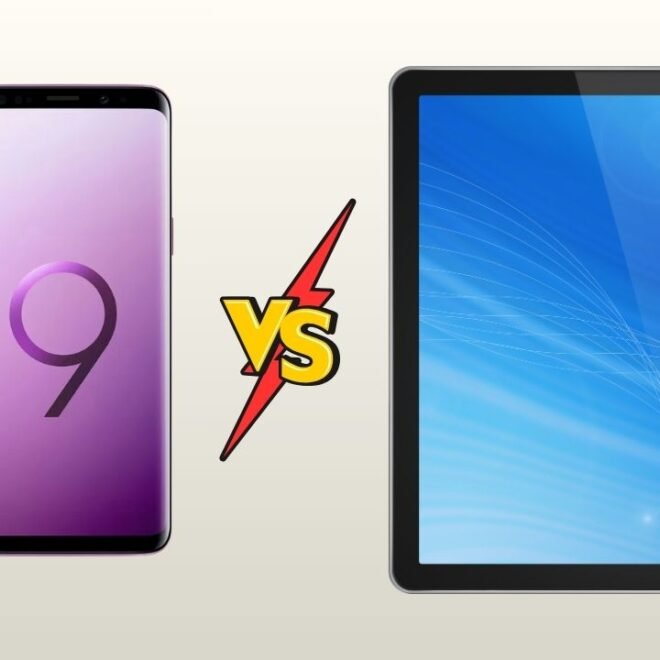
If you qualify for Lifeline and can pick only one device, the right move depends on daily habits. Do you live on calls, texts, maps, and emergency access—or do you need a bigger screen for school portals, telehealth, job forms, and video calls? This guide frames the free government tablet vs free government phone decision around real use, not hype, with clear takeaways that help you choose fast and avoid hidden costs.
phones usually include unlimited talk and text, a data bucket, and hotspot support; tablets often require a small co-pay, lean on data-only SIMs, and excel for reading, classes, and accessibility. We’ll weigh coverage maps, Lifeline eligibility, tablet co-pay realities, BYOD compatibility, upgrade paths, and replacement rules—so parents, seniors, students, and rural users can match benefits to everyday needs and get the most from free phone service.
Who qualifies right now
Lifeline is open to low-income households that meet either the income rule—gross household income at or below 135% of the Federal Poverty Guidelines—or participation in specific assistance programs. Eligibility is verified through the National Verifier (NV), except in California, Oregon, and Texas, which use state systems. Only one discount is allowed per household, and subscribers must complete periodic recertification to keep benefits active.
Note: the Affordable Connectivity Program (ACP) has ended for now; Lifeline remains available nationwide.
Lifeline basics and how eligibility works
You can qualify by income (≤135% FPG using the current year’s guidelines) or through program participation. Apply online through the NV, submit required proof, and—once approved—enroll with a participating provider for phone or internet service. In CA, OR, and TX, apply via the state portal rather than the NV.
Programs and documents that usually prove eligibility
Common qualifying programs include SNAP, Medicaid, Supplemental Security Income (SSI), Federal Public Housing Assistance (FPHA), and Veterans/Survivors Pension. Households on Tribal lands may also qualify through Bureau of Indian Affairs General Assistance, Tribal TANF, Tribal Head Start (income-based), or FDPIR. Acceptable proofs typically include a benefit award/approval letter or recent statement; for income-based qualification, prior-year tax return or recent pay stubs work. You’ll also provide ID, address, and the last 4 digits of your SSN or a Tribal ID number.
What you actually get with a free government phone
Typical talk, text, data, and hotspot details. Most Lifeline wireless plans include unlimited talk and text, plus a monthly data allowance that varies by provider and state. Some providers advertise larger or “unlimited” data buckets with policy limits or throttling, and a subset include dedicated hotspot data always check the fine print for your ZIP code. Federal rules set minimum service standards and let providers tailor offers by market, so the exact numbers are not uniform everywhere.
Hotspot support depends on both your plan and the handset. Lifeline providers that supply devices for mobile broadband must offer hotspot-capable phones, and the FCC phased this in so that by December 1, 2024 at least 75% of devices offered are hotspot-capable. That means if your plan includes data, you can generally request a hotspot-ready phone, though availability still varies by state and inventory.
Device types you’re likely to receive and what that means day to day
Expect an entry-level Android smartphone suitable for calls, texts, maps, messaging, and basic apps; the exact make and model depends on what the provider has on hand. When a device is provided, regulators require it to be Wi-Fi enabled and, for mobile broadband plans, hotspot-capable—useful for school portals, job sites, and telehealth on a laptop or tablet. Some carriers also let you bring your own compatible, unlocked phone (BYOD), which can mean better performance and longer software support if your handset qualifies. Always verify compatibility and state-specific offers before switching.
What you actually get with a free government tablet
Co-pay realities and what’s included out of the box. The former ACP “connected device” discount (one-time up to $100 with a required co-pay between $10 and $50) ended with the ACP wind-down; households stopped receiving ACP support on June 1, 2024. Any tablet offers you see now are provider promotions—not an ongoing federal device subsidy. Lifeline itself lowers your monthly service bill (generally up to $9.25, higher on Tribal lands) but does not discount the cost of a tablet. Always read the specific provider’s terms for model, warranty, and any one-time fees.
Data options for tablets and how they pair with phone service. Most Lifeline users who choose a tablet pair it with a mobile broadband plan (stand-alone data) and apply the monthly Lifeline discount to reduce that bill. Tablets typically use data-only SIMs; calling works through apps over Wi-Fi or cellular data, not traditional voice service. If you already have a Lifeline phone, you can keep costs down by tethering the tablet to your phone’s hotspot when available—providers must offer at least one hotspot-capable device for data plans, though exact hotspot allowances vary by carrier and state. Check plan details for speeds, throttling, and hotspot caps before you commit.
Where a tablet makes more sense
School, work, reading, and bigger-screen accessibility. If your day involves course portals, PDFs, slide decks, or long emails, a free government tablet pulls ahead. The bigger display handles split-screen multitasking, making it easier to keep a lesson open while taking notes or to compare job listings side by side. Keyboard cases and stylus support help with essays, worksheets, and signatures, and offline downloads let you study on weak connections. For accessibility, tablets shine with large text, magnifier, high-contrast modes, voice control, and screen readers—features that make reading, tapping, and navigating far less tiring for seniors and anyone with low vision or motor challenges.
Video calls, telehealth, and forms that are easier on a tablet. Telehealth visits are simply more comfortable on a larger screen: you can see your provider, review instructions, and read follow-up messages without constant zooming. A tablet on a stand also keeps the camera steady for clearer video and ID verification. When it’s time to fill out applications—benefits, school forms, or job onboarding—the extra space helps you avoid typos, preview uploads, and e-sign documents neatly. Split-screen mode is a quiet superpower here: keep the form on one side while referencing pay stubs, IDs, or email codes on the other, whether you’re on Wi-Fi, mobile data, or tethered to a Lifeline phone hotspot.
When a phone is the smarter pick
Always with you connectivity and emergency features. If you rely on real-time communication, a free government phone is the better first device. It lives in your pocket, handles voice calls without apps, and keeps two-factor codes, bank alerts, and school messages within reach. Phones support emergency calling and location services, plus features like Emergency SOS, Wi-Fi calling, voicemail, and Wireless Emergency Alerts—critical when power or internet is down. A handset also gives you maps, rideshare, and payments on the go, with lower battery drain than a tablet hotspot setup.
Number porting, reliability, and ease of use for seniors. Already have a long-held number? Port it to your Lifeline phone so family, doctors, and schools always reach the same line. Phones typically get stronger network priority than data-only tablets, and they pair cleanly with carrier voicemail and call forwarding. For seniors, a smartphone is simpler to carry and charge; look for larger display settings, high-contrast modes, hearing-aid compatibility, and a physical or on-screen SOS shortcut. Add favorite contacts to the home screen, enable auto-answer for trusted callers, and you’ve got a dependable, everyday device that just works.
Comparison you can scan in seconds
| Feature | Free Government Phone | Free Government Tablet |
|---|---|---|
| Screen size | ~5.5–6.7 in, pocket friendly | ~8–10+ in, easier to read/type |
| Cameras | Usually better front/rear shooters | Basic cams; good enough for video calls |
| Battery life | All-day on calls/text + light apps | Longer video/reading time per charge |
| Calling | Native voice + SMS/MMS | App-based calling over data/Wi-Fi |
| Hotspot | Often included, plan-dependent | Tethers to a phone or data-only plan |
| Storage | 32–128 GB typical; microSD on some | 32–128 GB typical; microSD on some |
| App support | Full Play Store; phone-first UI | Full Play Store; tablet-optimized UI |
Screen size, cameras, battery, calling, hotspot, storage, and app support. Phones win for pocket use, quick texting, maps, and urgent calls. Most offer better rear cameras, faster focus, and more reliable SOS features. Tablets shine for reading, forms, video visits, and split-screen work; the larger battery handles long sessions without constant charging. Calling on tablets runs through apps, so reliability depends on data quality. Hotspot access is clearer on phone plans; with tablets you’ll often tether or use a data-only SIM. Storage and apps are broadly similar across both, but many education and telehealth apps feel roomier and less cramped on a tablet.
Ongoing costs, upgrade paths, and replacement policies. Lifeline lowers your monthly service bill; phone plans often bundle unlimited talk/text with a data bucket, while tablets typically use data-only service or tethering. Expect possible taxes/fees, and check fine print for throttling and hotspot caps. Upgrades vary by provider—some allow bring-your-own-device for quicker improvements, others offer periodic swaps based on inventory. For replacements, normal wear is usually covered by a short warranty, but lost, stolen, or damaged devices can trigger fees or deductibles. Keep proof of eligibility handy for recertification, and confirm state-specific terms before switching plans.
Coverage and speed checks before you decide
How to read provider maps the right way. Start with the FCC National Broadband Map, switch to the Mobile layer, and zoom into your exact address. Compare carriers side by side, then note that the FCC map shows outdoor or in-vehicle connectivity—not indoor performance—so treat it as a baseline, not a guarantee. If coverage looks borderline, file or review a public mobile challenge and check whether measured speeds meet the FCC’s minimums (e.g., LTE below ~5/1 Mbps or 5G below ~7 Mbps can count as “negative” results for challenges). After the FCC view, cross-check with real-world apps like OpenSignal, Ookla/Speedtest, RootMetrics, and CellMapper to see crowdsourced results and recent drive tests.
Quick checklist: confirm 4G vs 5G layers, compare all major carriers, look for dead zones on crowdsourced maps, and—if possible—run a few speed tests at home, work, and school before you commit.
Rural addresses, tribal lands considerations, and indoor vs outdoor signal
Coverage gaps are more common in rural and Tribal areas; federal reports and studies have documented persistent disparities. If you live on or near Tribal lands, scrutinize both FCC maps and crowdsourced apps, then test a SIM or trial plan before porting your main number. Even where a map shows service, indoor signal can lag because maps are modeled for outdoor use; building materials, distance to the tower, and terrain all matter. Prioritize carriers showing stronger outdoor coverage at your exact location, and enable Wi-Fi calling as a backup.
Pro tip for indoors: check signal near windows on different sides of the home, compare bands (4G vs 5G), and review crowdsourced notes for buildings in your area. RootMetrics’ drive tests and OpenSignal/Speedtest datasets help reveal weak spots that predictive maps miss, especially in low-density areas.
Hidden costs most people miss
Co-pays, taxes and fees, upgrade and restocking surprises. “Free” covers the service discount, not every line item. If a provider promotes a low-cost tablet, expect a small co-pay plus state sales tax. Some carriers add one-time activation or SIM fees, expedited shipping, or number-change charges. Plans that advertise “unlimited” may throttle data or sell hotspot/data add-ons after a cap—those top-ups aren’t discounted. Upgrades can trigger processing fees, and returns often carry restocking plus return-shipping costs if you change your mind or the device isn’t compatible. Missed recertification can also lead to a reactivation fee or loss of a promo price. Keep an eye on mandatory surcharges (911, regulatory) that appear on monthly invoices even with a Lifeline discount.
Quick save: screenshot the offer page, ask for taxes/fees in writing, and confirm hotspot limits and return windows before you accept shipment.
Lost, stolen, or damaged device replacements and what to expect. Manufacturer warranties cover defects—not drops, loss, or water. For non-warranty issues, many providers charge a flat replacement fee, a deductible if you bought protection, and shipping. Stolen-device claims may require a police report and account verification; some carriers suspend the line to block misuse and then charge for a SIM replacement. If the provider uses an advance-exchange program, failing to return the old phone/tablet on time can add a “non-return” charge. Always register the device IMEI/serial, keep the box and receipt, and confirm whether the replacement resets your contract term or affects future upgrade eligibility.
Bring-your-own device options that actually work
Unlocking basics, eSIM notes, and compatibility tips. Start by confirming the phone or tablet is fully unlocked—not financed, not under a time lock, and not blacklisted. Then run the IMEI through your chosen provider’s BYOD checker. Look for support for the carrier’s LTE/5G bands and VoLTE (voice over LTE); with legacy networks retired, VoLTE is essential for calls. Update the OS and install any carrier settings prompt so calling, SMS/MMS, and hotspot work correctly.
If the provider supports eSIM, you’ll receive a QR code to activate over Wi-Fi. Make sure your device supports eSIM on that carrier and region, and keep a record of the activation code in case you need to re-download. For Android, double-check APN values if MMS or hotspot fail; for iPhone, reset Network Settings only after backing up eSIM details. Tablets generally need a data-only SIM/eSIM; Wi-Fi–only models won’t connect to cellular plans.
When BYOD saves time and when it causes headaches
BYOD shines when you already own a recent, unlocked device with good battery health. You skip shipping delays, keep your number, and usually get better cameras, faster chips, and longer software support than a basic free handset. It’s also ideal if you rely on specific apps, accessibility settings, or a familiar setup you don’t want to rebuild.
Headaches appear when a device lacks the right bands, VoLTE/5G profiles, or Wi-Fi Calling on that network. Imported models, older Android builds, or activation-locked iPhones can stall activation. Some providers don’t offer eSIM or have limited whitelists, causing valid phones to fail checks. Visual voicemail, RCS, and hotspot can be hit-or-miss on non-carrier firmware. If any of these apply, ask for a test SIM/eSIM first—or use the provider’s phone, then switch to BYOD once you’ve verified coverage and features.
How to apply without hiccups
Simple document checklist to gather first
- Government-issued photo ID (name must match your application)
- Address details (street + apartment number; a service address if different from mailing)
- Proof of eligibility: either program participation (e.g., SNAP, Medicaid, SSI, FPHA, Veterans/Survivors Pension; Tribal programs where applicable) or income proof (recent pay stubs, W-2, or prior-year tax return)
- Last 4 of SSN or a Tribal ID number
- If using BYOD later: your phone’s IMEI for compatibility checks
Step-by-step flow from eligibility to activation
- Confirm you qualify under Lifeline eligibility (program-based or ≤135% of Federal Poverty Guidelines).
- Apply online through the National Verifier; in California, Oregon, and Texas, use the state’s portal.
- Upload clear documents—full page, all four corners visible, unexpired, and names/addresses matching your ID.
- Get your approval ID, then choose a participating provider that serves your ZIP code.
- Enroll with the provider (phone or data plan) and select a device or BYOD.
- Activate service: insert SIM/eSIM, complete APN/carrier settings, test calls/text/data, and enable Wi-Fi Calling and voicemail.
- Set reminders for recertification to avoid an unexpected shutoff later.
Common denial reasons and quick fixes that work
- Name or address mismatch: correct typos, add apartment/unit, and reupload ID and proof with matching details.
- Blurry or cropped uploads: rescan in good light, use PDF or high-resolution images, include the whole page.
- Expired or wrong proof: switch to a current benefits letter or fresh income docs; avoid screenshots that hide dates.
- Duplicate household claim: submit a household worksheet if multiple adults share one address but live as separate economic units.
- State-specific processing: if you’re in CA/OR/TX, reapply via the state site; approvals from the NV won’t carry over there.
- Underage applicant: have an eligible adult in the household apply and list you as a user if needed.
Two-minute decision guide
If you mostly call and text, choose this. Pick the free government phone. It handles native calling and SMS without apps, keeps your long-held number, and supports voicemail, emergency calling, and Wireless Emergency Alerts. Battery life lasts longer on voice-first use, and maps, banking codes, and school notices reach you instantly even when you’re away from Wi-Fi. Enable Wi-Fi Calling for tricky indoor spots and set favorites on the home screen for quick access.
If you study, stream, or work on documents, choose that
Go with the free government tablet. The larger display makes course portals, PDFs, forms, and telehealth far easier. Split-screen multitasking lets you reference email while filling applications, and a keyboard case or stylus speeds essays, signatures, and note-taking. Pair with your phone’s hotspot or a data-only SIM to stay connected during classes or job searches.
Accessibility tips that make a big difference
Small tweaks turn either device into a stress-free daily tool: increase display size, raise contrast, and simplify the home screen. Turn on voice control for hands-free actions, enable captions for video calls, and keep key apps on the dock so they’re always one tap away.
Larger text, voice control, and screen reader pointers on both device types
- Boost Text Size and enable Bold for clearer reading; use Magnifier for fine print.
- Turn on TalkBack (Android) or VoiceOver (iPhone/iPad) for spoken feedback and focus hints.
- Use Live Caption and Sound Amplifier/Hearing Aid support during calls and videos.
- Try Color correction/High contrast modes and stronger haptics for confident taps.
- Add Emergency SOS to the lock screen and test Wi-Fi Calling before you rely on it.
FAQs that clear up last doubts
Can I switch from a phone to a tablet later?
Yes. You can change your Lifeline enrollment to a different plan or provider, but only one discount is allowed per household at a time. Expect a fresh enrollment with the new plan, possible SIM/eSIM changes, and be sure to ask about any transfer or activation fees before you switch.
Do tablets include calling?
Usually, tablets run data-only service. Calling works through apps (VoIP) over Wi-Fi or cellular data, not traditional voice. If you need reliable 911, voicemail, and SMS/MMS without apps, a phone is the safer pick.
Is hotspot truly unlimited?
Rarely. Most plans include a hotspot allowance with throttling or deprioritization after a cap. Some markets sell add-on data passes. Always confirm the exact hotspot limit and post-cap speeds for your ZIP code.
How often can I upgrade the device?
Upgrade timing is a provider policy, not a federal rule. Some allow paid upgrades or swaps when inventory is available; others require waiting periods. You can bring your own compatible, unlocked device anytime to improve performance without waiting.
What happens if the device is out of stock?
Providers typically offer a comparable model, a backorder with an ETA, or the option to switch plans or BYOD. Get any substitution in writing, keep your order number, and verify warranty terms for the replacement model.

