



TL;DR
- Hotspot is offered on many free government plans yet not universal; verify tethering allowed, hotspot cap size, post cap speeds, and any video limits before you enroll
- Eligibility runs through Lifeline by income level or programs like SNAP Medicaid SSI; prepare ID address and proof, expect quick approval, then choose a provider that includes hotspot
- For reliable tethering secure your hotspot with WPA2 or WPA3 and a strong password, follow Android or iPhone steps, run speed tests, and save data with SD streaming and Lite apps
- If hotspot is slow or blocked check APN and provisioning, confirm device unlock and band support, consider congestion and deprioritization, then add hotspot data or switch to a better provider
Why hotspot on a free phone matters
When home internet is out of reach or temporarily down, a free government phone with hotspot keeps your laptop or tablet online without new monthly bills. Tethering turns 4G/5G data into a private Wi-Fi network so you can finish job applications, attend online classes, join telehealth visits, manage banking, and make video calls. It’s a portable backup for renters, students, gig workers, and rural households—no modem, no installer, just a quick toggle to stay productive.
To get dependable results, choose a plan that explicitly allows mobile hotspot or tethering. Read the fine print for a hotspot data cap (often 5–20GB), throttling after the cap, video resolution limits, and deprioritization during network congestion. Confirm your phone supports the right 5G bands, then secure your network with a strong password, WPA2/WPA3, and a unique SSID. Check coverage maps at your exact address and run quick speed tests near windows or outdoors. Used smartly, hotspot can bridge outages and cut reliance on expensive home broadband.
Can you get hotspot with a free government phone?
Short answer: yes—on many plans. A free government phone with hotspot is possible, but it isn’t guaranteed. “Hotspot included” means the carrier allows tethering so your phone can share its 4G/5G data with other devices. Usually, there’s a specific hotspot data cap (commonly a few to 20GB), and speeds may be throttled or deprioritized after that limit. “Unlimited data” often applies to on-device use, while hotspot is limited, sometimes with video resolution caps for streaming.
Availability varies because policies are set by the provider, plan, and state. Providers decide whether the free tier permits tethering or requires a small add-on or upgrade. Plans differ by network partner and wholesale agreements, so one brand may allow hotspot in one area but not another. State programs can also change benefits; some states offer extra support that improves plan features, while others keep a basic package. Finally, device and settings matter—older phones, missing APN configurations, or unsupported bands can block hotspot even when the plan allows it. Bottom line: check the plan page for phrases like “tethering allowed,” “hotspot data,” and “speeds reduced after,” then confirm with customer support so you know exactly what you’re getting.
Who qualifies (and what you need to apply)
Most users get a free government phone with hotspot through the Lifeline program. You qualify either by income or program participation. Income-based eligibility is typically at or below 135% of the Federal Poverty Guidelines (some states use 150%). Program-based eligibility includes SNAP, Medicaid, SSI, Federal Public Housing Assistance, and Veterans Pension or Survivors Pension. On Tribal lands, enrollment in TTANF, Bureau of Indian Affairs General Assistance, FDPIR, or income-based Head Start also qualifies and may boost benefits.
Documents to gather: a valid government-issued ID, proof of address, and proof of eligibility. For income, use a prior-year tax return or three recent pay stubs. For program participation, provide a benefit award letter dated within the last 12 months. You’ll also need the last four digits of your SSN or a Tribal ID and to consent to verification.
Timeline expectations: Apply through the National Verifier online. Many applicants receive instant approval; document reviews usually finish in 1–3 business days. After approval, choose a provider, submit your order, and expect shipping in 3–7 business days. Number transfer typically completes within 24 hours once you provide your old account number and port-out PIN. Before you finalize, confirm the plan explicitly includes hotspot/tethering.
Step-by-step: apply and choose a plan that allows hotspot
1. Check eligibility
Use the National Verifier to confirm you qualify for Lifeline. Have a government ID, proof of address, and either income proof (tax return or recent pay stubs) or program proof (e.g., SNAP, Medicaid). Keep digital copies ready to upload.
2. Compare providers in your ZIP code
Search Lifeline carriers that serve your exact ZIP. Check each network’s coverage map at your address and note typical speeds. If you own a phone, confirm band/5G compatibility; otherwise choose the free handset option.
3. Confirm “tethering” or “mobile hotspot” in plan details
On the plan page, look for phrases like “hotspot included,” “tethering allowed,” “XGB hotspot cap,” “speeds reduced after,” and video resolution caps. Save a screenshot or ask support for written confirmation.
4. Submit application
Apply with the approved eligibility, select your plan, choose SIM or eSIM, and request to port your number if needed. Double-check shipping details and any small add-on fee tied to hotspot.
5. Activate and verify hotspot works
Insert SIM, complete activation, and set the correct APN if prompted. Enable Mobile Hotspot/Personal Hotspot, connect one device, run a quick speed test, and confirm data counts against the hotspot cap. Set a data warning to avoid throttling surprises.
Providers and plans: how to check if hotspot is included
Start on the provider’s plan page and open the Plan Details, FAQs, Terms & Conditions, Acceptable Use Policy, and any plan brochure PDF or Network Management Disclosure. Use Ctrl/⌘+F to search these pages. You’re looking for an explicit statement that a free government phone with hotspot allows tethering and the size of the hotspot data cap. If details aren’t on the main plan card, they’re often buried in the fine print or FAQ.
Key phrases to find and save (take screenshots):
- “tethering allowed / mobile hotspot included”
- “hotspot data: XGB” or “hotspot cap”
- “throttled after XGB” or “speeds reduced to 3G after”
- “deprioritization during congestion”
- “video streaming limited to 480p/720p”
- “no tethering” or “hotspot not available on this plan”
- device limits (e.g., “1 connected device”) and APN requirements
If wording is vague, contact support via chat or email and ask directly:
- “Does this plan permit mobile hotspot/tethering?”
- “How many GB are included and what happens after the cap?”
- “Any device restrictions, APN settings, or state-specific limits?”
Request written confirmation or a policy link and save the transcript. Confirm that any “unlimited data” claim refers to on-device data, not hotspot, so you know exactly what you’re getting.
BYOD vs. free handset: which is better for hotspot?
If your priority is faster, more stable tethering, BYOD (bring your own device) usually wins. An unlocked, recent 5G phone often supports Wi-Fi 6/6E for stronger hotspot performance, plus broader sub-6 5G bands (e.g., n77/C-band for AT&T/Verizon, n41 for T-Mobile, n71 for low-band coverage). That combination boosts peak speeds and consistency when several devices connect. BYOD also gives you freedom to switch providers if a plan limits tethering or coverage isn’t great at your address. The trade-off: you must verify IMEI compatibility, set the correct APN, and ensure the device is fully unlocked so hotspot isn’t blocked at the firmware or carrier level.
A free handset is simple and $0 out of pocket, which is perfect for basic hotspot needs. However, entry-level models may ship carrier-locked, include fewer 5G bands, and top out at Wi-Fi 5 (802.11ac). You’ll still get workable tethering for email, forms, and SD video, but speeds can dip during congestion, and performance may fall off with multiple connected devices. Some budget phones also throttle hotspot sooner or lack advanced Wi-Fi controls.
Quick checklist for hotspot buyers:
- Unlocked status: avoid carrier locks that can restrict tethering or port-outs.
- 5G bands: look for n77 (C-band), n41, and n71 for balanced speed + reach.
- Wi-Fi standard: Wi-Fi 6/6E hotspot is more efficient for multi-device use.
- Plan policy: confirm “tethering allowed” and the hotspot data cap in writing.
- APN & firmware: update software, load the right APN, and test a speed check post-activation.
For heavy hotspot use, BYOD with modern radios is the better long-term play. For light or temporary tethering, the included free handset is usually enough.
Turn on hotspot the right way
Android (Wi-Fi hotspot / tethering)
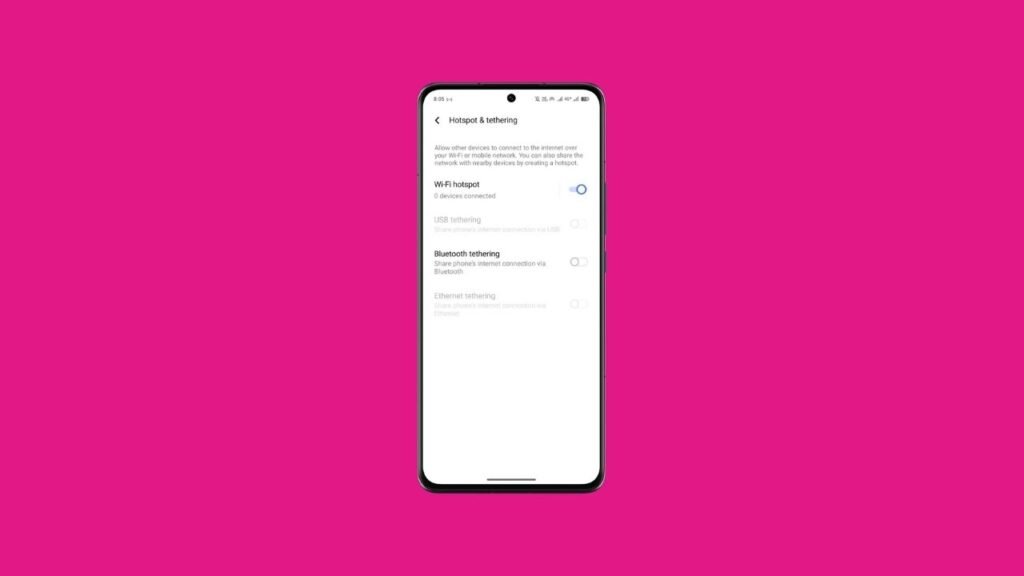
Open Settings → Network & Internet (or Connections) → Hotspot & tethering → Wi-Fi hotspot. Tap Hotspot name (SSID) and set a unique name; avoid your full name or phone model. Set Security to WPA2/WPA3 and create a 12+ character password with letters, numbers, and symbols. Optionally choose 5 GHz for faster speeds (2.4 GHz for older devices or longer range), set a device limit, and enable auto-turn-off when idle to save battery. Toggle Wi-Fi hotspot on, connect one device, and run a quick speed test. If the switch is grayed out, load the correct APN, disable extreme battery saver, and retry.
iPhone (Personal Hotspot & Family Sharing)
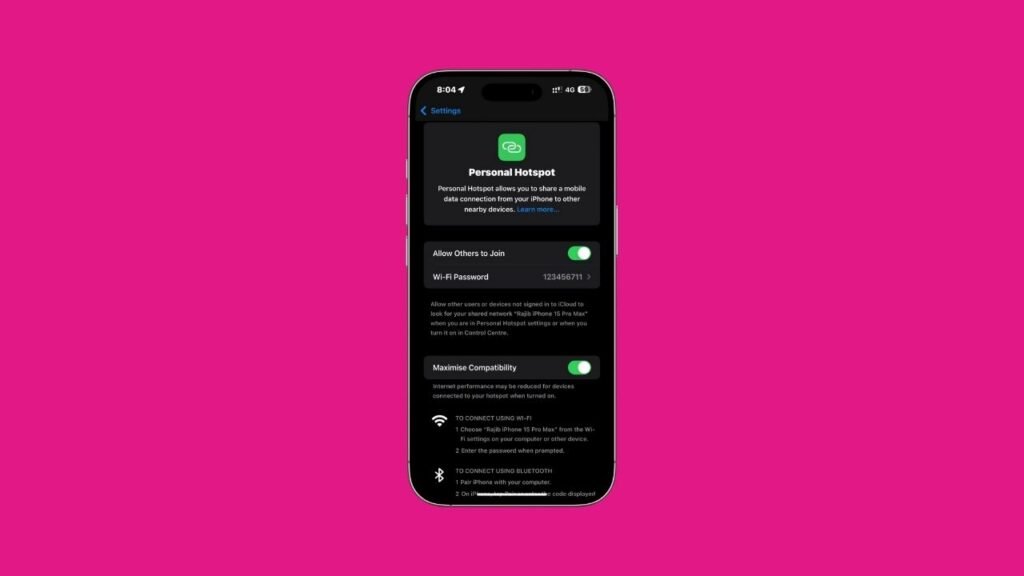
Go to Settings → Personal Hotspot (or Settings → Cellular → Personal Hotspot). Turn on Allow Others to Join, then tap Wi-Fi Password and set a strong 12+ character password. If another device can’t see your hotspot, enable Maximize Compatibility (uses 2.4 GHz). Your hotspot name matches the iPhone name—change it at Settings → General → About → Name. For trusted family devices, open Settings → Personal Hotspot → Family Sharing, toggle it on, and choose Automatically or Ask for Approval per person. Connect, verify internet works, and monitor data to stay within your hotspot cap.
Make your hotspot data last longer
Hotspot caps vanish fast with background sync, HD streaming, and app updates. Treat your free government phone with hotspot like a metered connection: set rules, lower video quality, and move heavy downloads to home or public Wi-Fi. Always keep one eye on usage—most carriers count hotspot separately from on-device data, and speeds can drop sharply after the cap.
Smart moves that stretch every gigabyte:
- Set data limits & warnings: Android → Settings → Network & Internet → Data usage; iPhone users can track per-app usage in Settings → Cellular and reset each billing cycle.
- Restrict background data: Disable auto-sync for cloud drives, photos, and mail; turn off auto-updates for apps and OS.
- Use Lite and web apps: Facebook Lite, YouTube Go alternatives, or site versions via browser reduce payloads.
- Stream in SD: Force 360p/480p in video apps; disable “auto HD.”
- Cache on Wi-Fi: Download maps, playlists, lectures, and podcasts before you tether.
- Block data hogs on connected devices: Turn off cloud backup, disable auto-play, and pause OS/app updates until Wi-Fi is available.
- Tweak hotspot band & timeout: Use 2.4 GHz for range or 5 GHz for efficiency; enable auto-turn-off when idle.
Troubleshooting when hotspot won’t work
Start with the basics: toggle Airplane Mode on/off, reboot the phone, and try one device at a time. If the hotspot switch is grayed out or clients connect with “No internet,” check your plan policy—some free tiers block tethering or require a hotspot add-on. Next, verify APN settings (or Carrier Settings on iPhone). Plans that allow tethering often need a specific APN or profile; re-install it, then retry. Confirm mobile data is on, disable extreme battery savers/VPNs, and test both 2.4 GHz and 5 GHz hotspot bands.
Rule out device compatibility: older or carrier-locked phones may restrict tethering; update firmware and ensure the phone is unlocked. Swap the SIM/eSIM into a known-good phone to isolate a hardware issue. If speeds are near zero, you may have hit the hotspot cap or be in a deprioritized zone—run a speed test with and without hotspot. Still stuck? Contact support via chat/email and ask for: (1) confirmation that tethering is enabled on your line, (2) the correct APN, and (3) a refresh of network/IMEI provisioning. Save the transcript.
Fair use, throttling, and “unlimited” explained
“Unlimited data” usually applies to on-device use, while mobile hotspot has a separate cap. A soft cap means you can keep using data after a limit, but speeds drop—often to ~128–600 kbps, enough for messaging and light browsing, not HD video. Throttling is that deliberate speed reduction once you hit a threshold. Deprioritization is different: during network congestion, your traffic moves behind higher-priority users, causing variable slowdowns even before you reach a cap.
Many plans also include video caps (e.g., 480p/720p streaming) and traffic-management rules that block large downloads or limit the number of connected devices. After you exceed the hotspot allotment, carriers may shut off tethering entirely or keep it at heavily reduced speeds until the next cycle. To avoid surprises, read the plan’s Network Management or Terms for phrases like “hotspot data XGB,” “speeds reduced after,” “deprioritization during congestion,” and “video limited to 480p.” Track usage, set data warnings, and shift big downloads to Wi-Fi.
Coverage and speeds: what to check before you rely on hotspot
Start with the carrier’s coverage map at your exact address and anywhere you’ll work or study. Look for 5G and LTE layers, then read the legend: dark, solid colors usually signal stronger outdoor coverage; lighter shades and dotted areas can mean weak indoor service. Many maps include “indoor expected” notes—prioritize those if you’ll be tethering from home. Next, run quick speed tests at peak and off-peak hours with the phone in different spots: by a window, on a balcony, or near the front door. Record download, upload, and latency; uploads matter for video calls and cloud docs. If speeds swing wildly indoors, try a different band setting (2.4 GHz vs 5 GHz hotspot) and keep the phone elevated and away from metal surfaces. For stability, retest for a few days; consistent 10–20 Mbps down and 3–5 Mbps up is usually enough for email, docs, and SD streaming on a laptop.
Special cases worth knowing
Tribal lands: Lifeline on Tribal lands can include enhanced support, which may translate into better plan options. Check the provider’s Tribal plan page and ask directly about hotspot terms and any extra data.
Seniors & accessibility: Favor phones with large-text modes, loudspeakers, hearing-aid compatibility (M/T ratings), and simple hotspot toggles. Keep printed steps near the device.
Rural addresses: Low-band 5G/LTE often performs best outside; test near a window and consider a longer USB-C cable or powered stand to keep the phone in the strongest spot while you work nearby. If one carrier underperforms, try another network’s Lifeline provider.
Multi-line households: Set a device limit on the hotspot and use profiles on laptops to stop background sync. Establish a house rule for streaming in 480p during shared sessions to prevent caps from vanishing on day one.
Security basics when sharing your connection
Use WPA2/WPA3 security and a 12+ character password that’s unique and not reused anywhere else. Rename the hotspot with a neutral SSID—avoid your full name or phone model. Hiding the SSID adds little real security and can make connecting harder; a strong password is what matters. Share access one-to-one (QR code when possible), disable automatic connections on guest devices, and review the list of connected clients regularly. Turn the hotspot off when idle, in public places, or when you’re near unknown devices. Keep the phone’s OS and carrier settings updated to patch vulnerabilities, and avoid side-loading apps on devices that join your hotspot.
If your plan doesn’t include hotspot
Start by asking the carrier about a low-cost hotspot add-on or a plan variant that permits tethering. If that’s not available, consider switching providers that allow hotspot on their Lifeline option in your ZIP code. BYOD can help: an unlocked 5G phone with broad band support (n77/n41/n71 in the U.S.) often delivers better tethering performance when the plan permits it. For occasional use, lean on public Wi-Fi at libraries or community centers and pre-download large files before you tether. If you need daily home internet, compare fixed wireless and home 5G options in your area; some entry plans are affordable and remove mobile hotspot caps entirely. Always confirm tethering terms in writing, note any soft caps or throttling, and set data warnings so you don’t hit a slowdown mid-deadline.
Costs you might not expect
A free government phone with hotspot can still come with small, easy-to-miss charges. Providers may collect sales tax on discounted hardware and shipping on rush deliveries. If you upgrade or exchange a device, watch for restocking fees, return shipping, and price differences between colors or storage tiers. Lost or damaged phones usually aren’t replaced at no cost; expect replacement fees, a deductible if a protection plan is involved, or a charge for SIM/eSIM reissue. Accessories aren’t always included—some carriers bill for a charger, cable, or SIM tool. For hotspot itself, you might see add-on data fees, temporary boost charges, or a required move to a higher-tier plan to keep tethering. Missed return windows, wrong addresses, or refusing deliveries can also trigger extra costs. Read the plan’s Fees and Returns pages and save copies before you commit.
Quick checklist before you switch providers for hotspot
- Number portability: Locate your account number and port-out PIN; confirm there’s no number-change fee.
- Device lock status: Verify the phone is fully unlocked and that hotspot isn’t blocked at the firmware level.
- Compatibility: Check IMEI on the new carrier, supported 5G/LTE bands, and Wi-Fi 6/6E hotspot capability.
- Plan policy in writing: Get explicit confirmation of “tethering allowed”, hotspot cap (GB), and speeds after cap. Save the chat or email.
- Coverage & speeds: Test the new network near your address at peak hours; confirm usable upload for calls and cloud work.
- Fees & timing: Ask about activation, SIM/eSIM fees, shipping, and any restocking if you return a device.
- Early obligations: If you financed a phone elsewhere, confirm no early termination or device balance will block your port.
- APN & setup: Note the APN name, hotspot settings, and any required carrier updates for a smooth first-day setup.
- Data controls: Plan how you’ll track hotspot usage (cycle reset date, warnings) to avoid surprise throttling.
FAQs
Is hotspot truly unlimited on free government plans?
Usually no. “Unlimited” often applies to on-device data; hotspot has a separate cap and may be slowed or disabled after you hit it.
Can I connect a laptop, TV, or tablet to my phone’s hotspot?
Yes. Most plans allow multiple devices, but some limit the count; streaming on TVs uses data quickly, so stick to SD quality.
Why is my hotspot slow even with data left?
Network deprioritization, congestion, weak signal, or the wrong Wi-Fi band (2.4 vs 5 GHz) can drag speeds down. Move near a window, switch bands, and retest.
Can my provider block tethering on certain phones?
Yes. Carrier locks, missing APN settings, or account provisioning can block hotspot. Ensure the phone is unlocked and ask support to enable tethering.
How do I buy more hotspot data if I run out?
Look for a hotspot add-on or plan upgrade; some carriers sell temporary data passes. Your cap resets on the next billing cycle, so track usage closely.

